A portfolio works best when it shows a few strong projects and is easy to update. This guide usesEthan Walker, a free Framer portfolio template, as the example. The steps also fit any other template with a CMS.
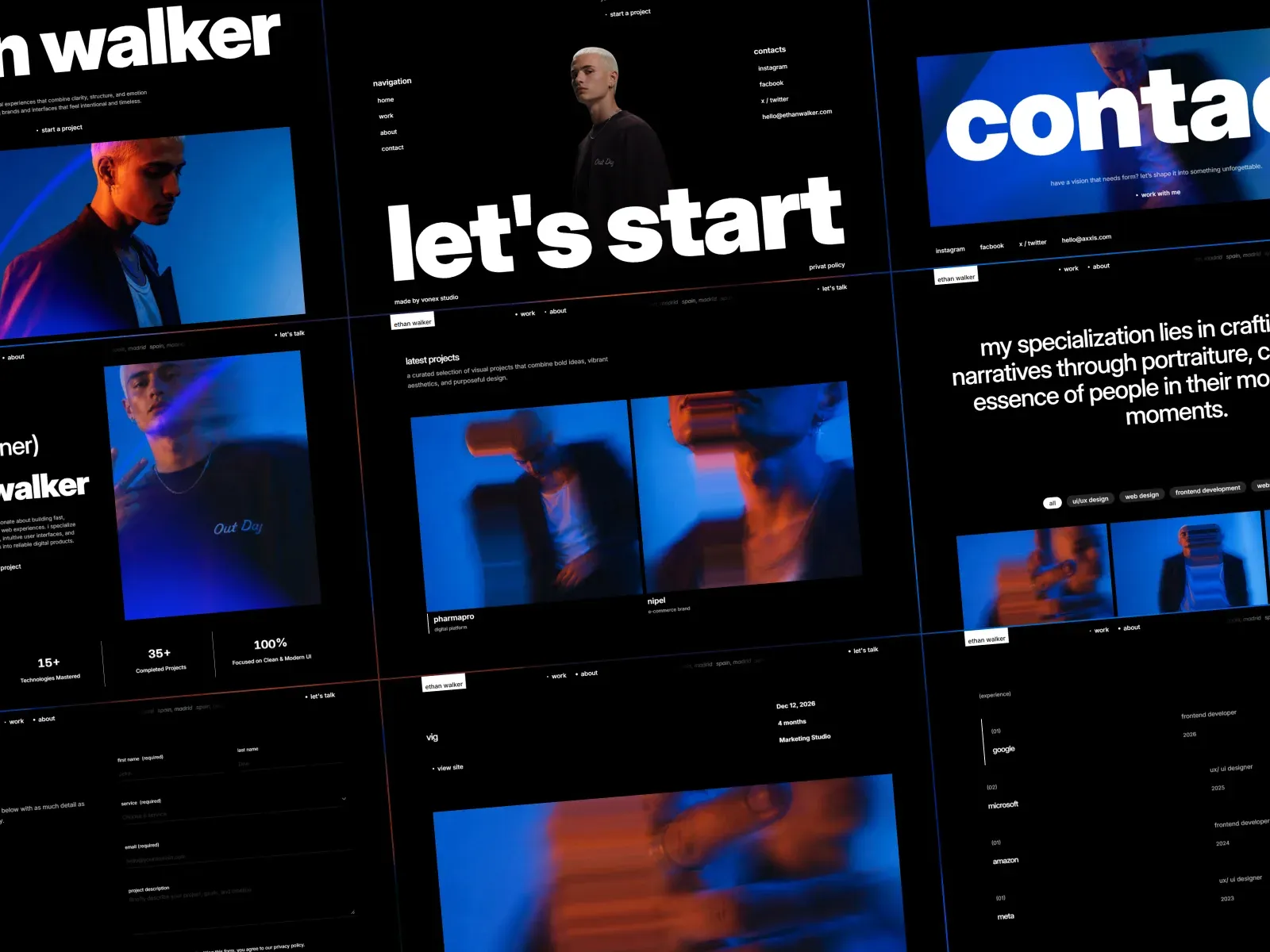
What the template includes
- Pages: Home, About, Work, a Project page for each case study, Contact, Privacy Policy and a 404 page.
- CMS collections: Projects, Services and the Privacy Policy.
- A contact form, scroll and hover effects, and large typography.
1. Choose the work to show
Pick three to six projects. For each one, write what the problem was, what you did and what changed. Add two to four images. Fewer, better projects beat a long list.
2. Copy the template
Open Ethan Walker, press "View on Framer", then remix it into your account. The general steps are in how to use a Framer template. Still choosing? Compare the best free Framer portfolio templates.
3. Add your projects in the CMS
The Work page and the project pages are driven by the Projects collection. Open the CMS in Framer, replace the sample items with your own and fill every field: title, cover, text and images. Each item becomes its own project page. You do not edit the design to add a project. More on how collections work in the Framer CMS guide.
Do the same for Services if you offer them. Delete sample items you do not need, so no placeholder reaches the live site.
4. Rewrite the About and Home pages
Say who you are, what you do and who you work with, in a few plain sentences. Put your best project and a clear contact link near the top.
5. Set up the contact form
Point the form to your own email, send a test message and check that it arrives. Keep your email address visible as a fallback.
6. Check and publish
- View every page on desktop, tablet and phone.
- Write a title and description for each page. Add a social preview image.
- Update the Privacy Policy item so it describes your own site.
- Check your Framer plan for CMS and page limits, and whether you need a custom domain. See what it costs.
- Publish, then open the live site and click through it once more.
Keep it current
Add a new project to the CMS when you finish one. A portfolio that was updated this month looks alive. Remove old work that no longer represents you.